
How to add Strains, set up Zones, and understand how Zones work with each Harvest
Table of Contents
Adding Strains in grow settings
When you add a Harvest in the Calendar, you have the option to choose the Strains you want to run in the Harvest.
However, before you can choose them, in Grow Settings, you can enter all the possible Strains you might use in a batch of plants that moves through the grow:
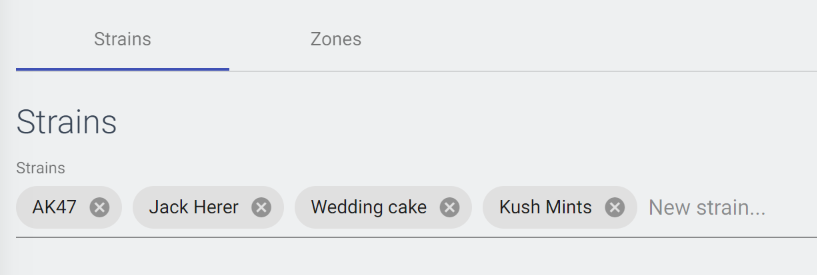
Once you've set up your Strains in Grow Settings, for every strain you entered, you'll be able to choose from them when populating a new Harvest, or also when going into the Harvest Detail of an existing Harvest to track placements as you move them from room to room.
Setting up Zones
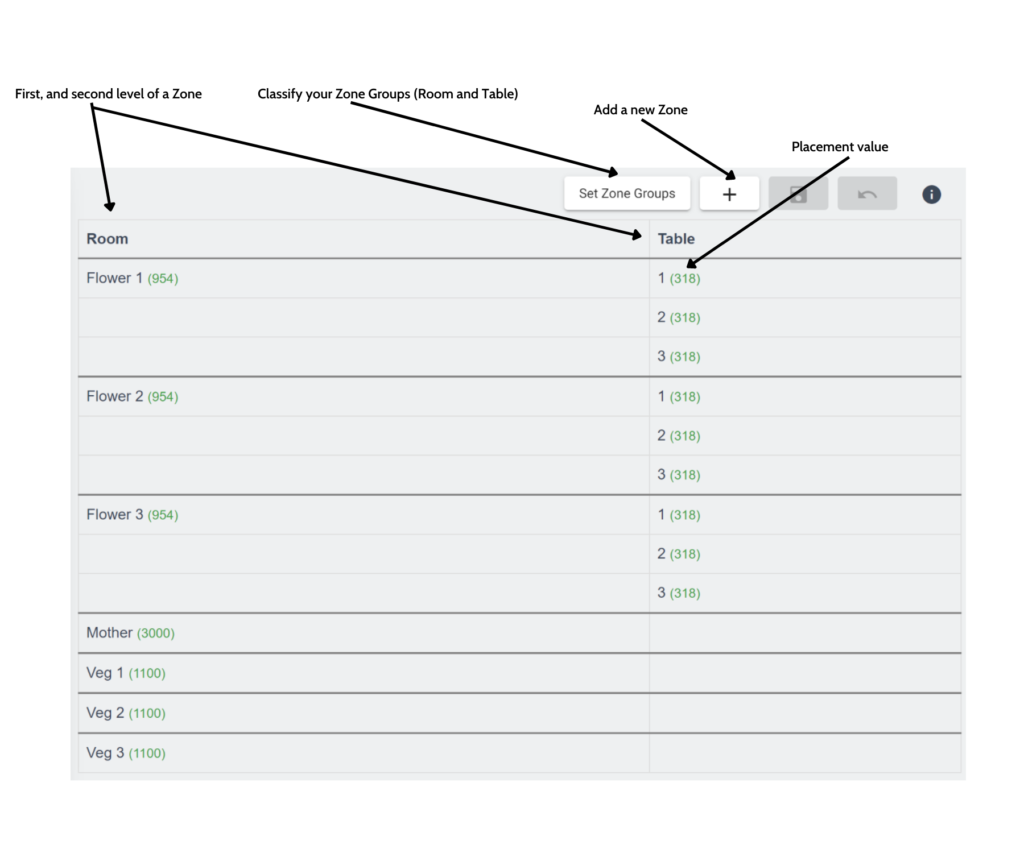
Zones are defined as a representation of a physical space in your cultivation, along with that physical spaces total number of placements for plants.
The most common way to set up a Zone is to represent a Room. If you think of your individual prop rooms, veg rooms, or flower rooms, you can define those specific spaces as Zones.
You can also have multiple levels of organization in your Zones. You might have a room with three Tables in it. You can set up your Zones with both the Room, and the Table (see below).
It's important to note that whatever your placement value is for the lowest level of a Zone, it will add up to the total highest level Zone placement value.
It's also important to note that you may have some Zones with two levels of organization, and some with only one level.
An example of a one level Zone might be your prop room. In a prop room, it's usually not necessary to track the plants down to the Table.
An example of a two level Zone might be your Flower Room. Here, you'll want to know, down to the Table, where the Strains are located.
Using Zones with Harvests
Once you've set up your Zones, you can then track where each Harvest, or plant is, as it moves through the grow. To assign each Harvest, and the plants associated with it to a Zone, go to the Harvest Detail of an individual Harvest under the Harvest Tab. For more information please go to the Harvests page here.